Section 1: Getting Started with WordPress
Step 1: Get a Web Hosting Account
If you have a web hosting account, that's great! If you need one, I recommend using Hostinger.
Section 1 Topics
This section gets you started using WordPress: selecting a theme, customizing that theme, and setting up the initial pages of your website. By the end of this section, you will have a working website with your selected theme (customized if desired), along with the pages of your website. In Section 2 we will cover more about formatting content and adding customized menus.
WordPress Dashboard (6:30)
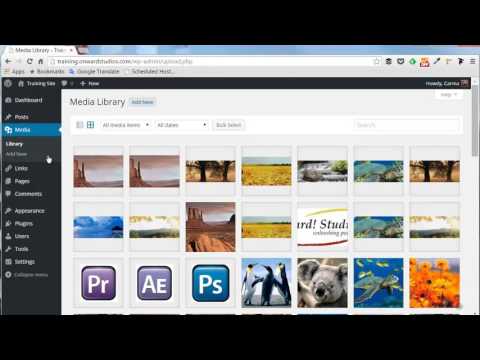
This video gives you an overview of the WordPress Dashboard — the main menu of WordPress. The Dashboard can be overwhelming at first. You really only need to know a few of the available options to get started. This video highlights and explains those options.
Selecting and Managing a Theme (7:01)
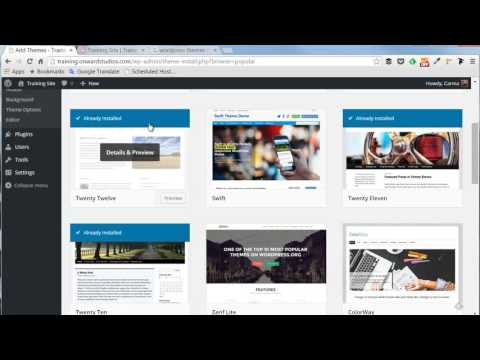
In this video you learn how to select a WordPress theme from within WordPress and where to find themes on the internet. We look at the various options for finding a theme and show how to preview, install, and activate one. We also cover deleting themes no longer in use.
Customizing Themes (7:09)
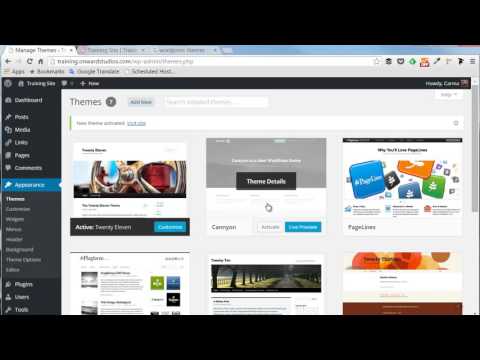
This video shows you how to use the customization options in WordPress to further customize your theme. Although the options vary from one theme to another, what you learn here will be applicable to all themes.
Add Pages (5:19)
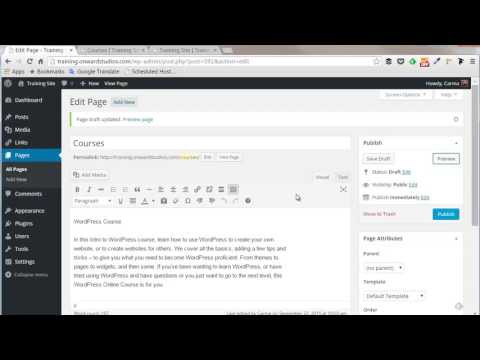
This video shows you how to add pages to your WordPress website, plus how to use the Page Attributes settings to control where your page appears in your menu. We also cover saving a draft version of a page and how to preview it.