Make Your Images Web-Ready in Photoshop
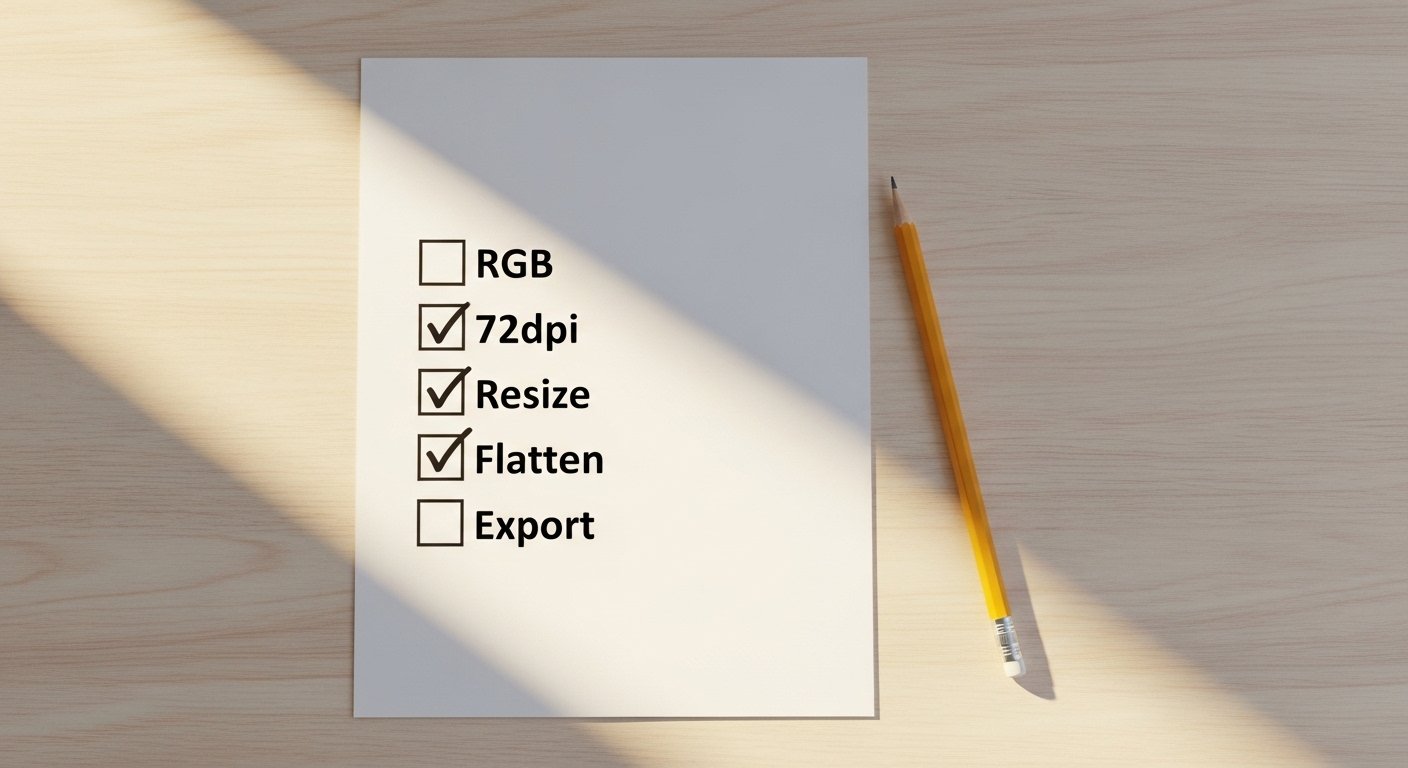
Preparing images for the web in Photoshop involves a handful of specific settings that are easy to get right once you know them. Here's the complete workflow for taking any image and making it web-ready.
1. Work in RGB Color Mode
Web images must be in RGB color mode (not CMYK, which is for print). Check your mode at Image > Mode — it should say RGB Color. If it says CMYK, convert it: Image > Mode > RGB Color. Working in CMYK for web images will cause colors to look wrong in browsers.
2. Set Resolution to 72 PPI
Screen resolution is 72 ppi (pixels per inch). There's no benefit to using higher resolution for web images — it just makes file sizes larger without improving how the image looks on screen. Go to Image > Image Size, make sure Resample is checked, set Resolution to 72, and click OK.
3. Resize to Your Target Dimensions
Know the maximum display size for your image before you resize. For a blog post image that displays at 800px wide, set your width to 800px. For a full-width banner image, 1400–1920px wide is typical. Making images larger than their display size wastes bandwidth; making them smaller than display size makes them look blurry.
4. Flatten and Clean Up Layers
Before exporting, flatten your image (Layer > Flatten Image) to merge all layers. This reduces file size and ensures the exported image looks exactly as intended. Keep your layered PSD file saved separately so you can make edits later if needed.
5. Export Using Save for Web
Go to File > Export > Save for Web (Legacy). Choose your format (JPEG for photos, PNG for graphics, WebP for modern browsers), set quality, and check the file size preview. Save with a descriptive, hyphenated filename.
Quick Reference: Web Image Settings
- Color mode: RGB
- Resolution: 72 ppi
- Format: JPEG (photos), PNG (graphics/transparency), WebP (modern)
- JPEG quality: 60–80 for most images
- Target file size: Under 200KB for most images
- File naming: Lowercase, hyphens, descriptive keywords