Section 3: Repairing Images, Effects & Filters
Section 3 Topics
In this section we continue discovering more options inside Photoshop. In addition to looking at selections at a deeper level, you are introduced to Layer Styles and the fun of working with filters. Layer styles can add a 3D feel to your work. Filters are used to give your image a watercolor look or convert it into a pencil sketch. The options are endless! Plus, we also look at removing items from images and use the same techniques to repair old photos.
Let's get started!
Adding 3D Effects (6:31)
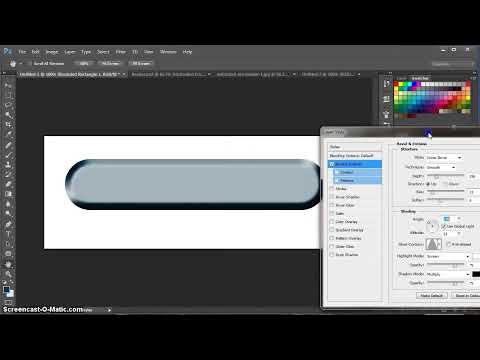
Use Layer Styles to add another dimension to your text and shapes. This video introduces the most common effects used to give a 3D look to elements in your Photoshop file.
Removing Items in Photos and Repairing Old Photos (6:15)
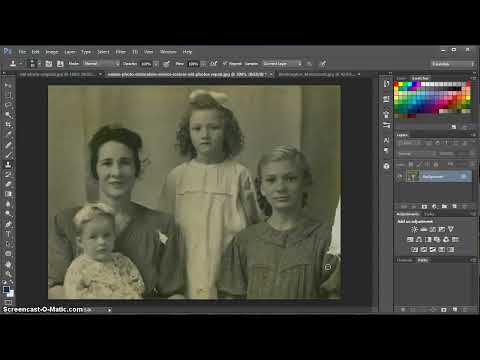
Learn how to 'remove' items from a photo and to repair old photos using the same techniques. This video shows you how to use the Content-Aware option, plus the patch tool, clone stamp tool, healing brush and spot healing brush to remove items and to repair old photos.
Using Filters to Add Artistic Flair (5:35)
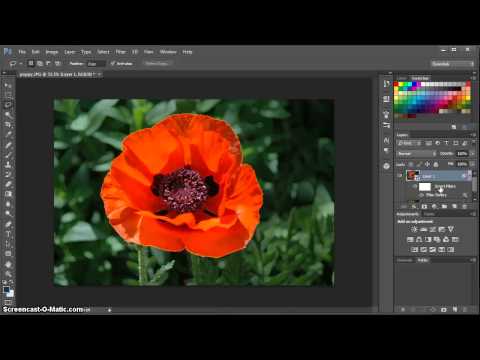
This video shows you how to change your image into a drawing, a sketch, or a mosaic. The options are endless when you use the Filters option inside Photoshop. This video also explains why it is highly recommended to use smart filters. Wow your friends with your artistic flair after watching this video!
Adjustment Layers: Brightness/Contrast, Levels, and Curves (7:16)
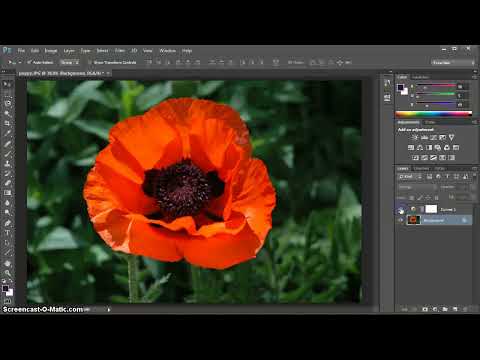
Learn more about adjustment layers as we explore the first 3 adjustment layer options in the adjustment panel. These three options do similar functions with varying degrees of complexity.
Adjustment Layers: Exposure through Gradient (6:47)
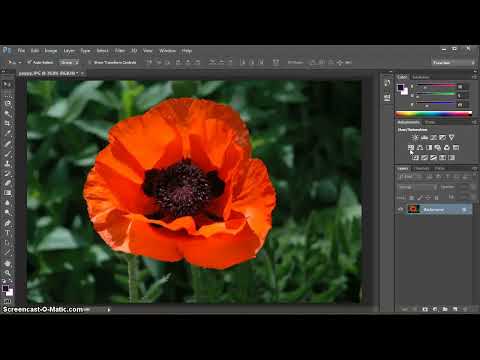
This video covers most of the remaining adjustment layer options available in the adjustment panel. Learn more about the various options as well as the individual settings within each option.
Bonus Material
30 Most Useful Keyboard Shortcuts
Learning to use keyboard shortcuts in Photoshop saves you a lot of time. Download this PDF to see a list of the 30 keyboard shortcuts used most often.
Top 30 Most Useful Keyboard Shortcuts →
Adobe Bridge (9:28)
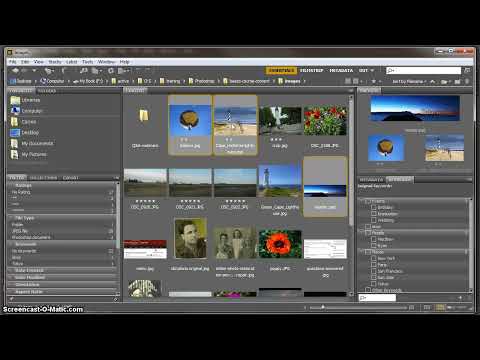
Find out how Adobe Bridge saves you time. Learn about navigating within Adobe Bridge and become efficient with many of its features.
Working with Multiple Files Inside Photoshop (2:39)
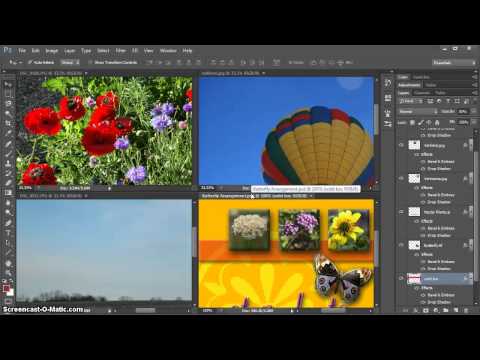
Learn how to manage multiple opened files. Become familiar with the Arrange option. Find out how to arrange opened files to best meet your needs.
Stitch a Panorama
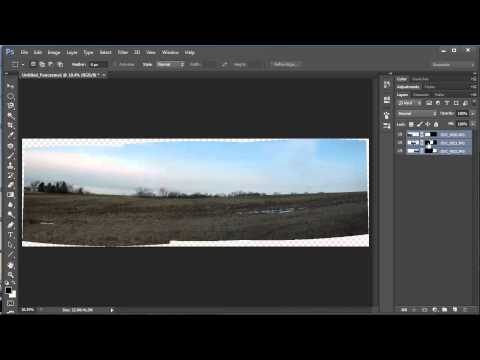
Create a panoramic image by merging multiple images together! Snap a sequence of images with your camera, overlapping the left and right edges slightly, then let Photoshop stitch them together. It's magic!