Section 2: Color Corrections & Making Selections
Section 2 Topics
Now that you are familiar with Photoshop — the desktop and some of the basic image editing functions such as rotate, crop, size and resolution — and you have been introduced to layers — it's time to learn some of the common color correction techniques. We'll also look at shapes, text, go deeper into layers, and start our first discussion on making selections.
Let's dive in!
Adjustment Layers and Correcting Images that are too Dark or too Light (7:34)
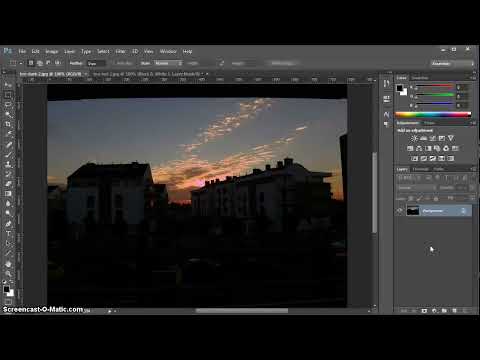
This video shows two different techniques on how to darken light images or how to lighten dark images. You will also learn why I highly recommend using adjustment layers whenever you are making an adjustment to an image. This is important stuff!
Removing a Tint — Converting an Image to Black and White and Adding a Tint (4:25)
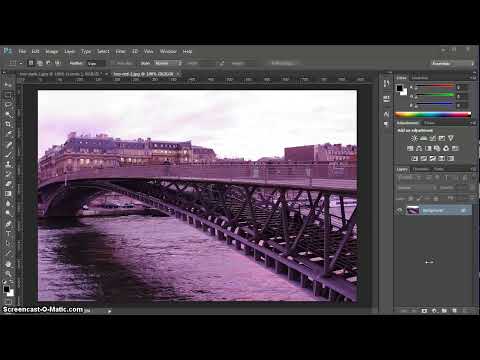
This video shows you how to remove a tint from an image — whether it's a blue, red, yellow, or some other shade of tint. Then, learn how to take an image to black and white and add a tint to the image. This can be used to create an old photo feel (sepia) or to give a black and white image a cool (blue) or a warm (red) feel to it.
Adding Shapes (4:59)
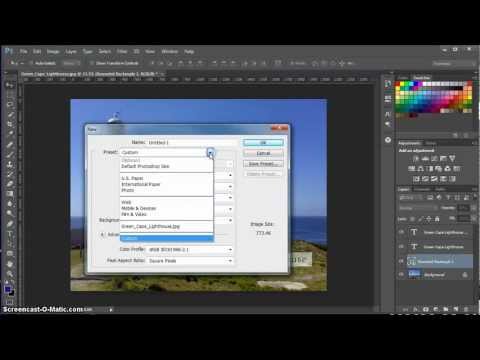
This video shows you how to use the shape tool. Add shapes to offset text on your images, or to create a new graphic. Learn the settings and uses of the various shape tools.
Keeping Layers Manageable (5:01)
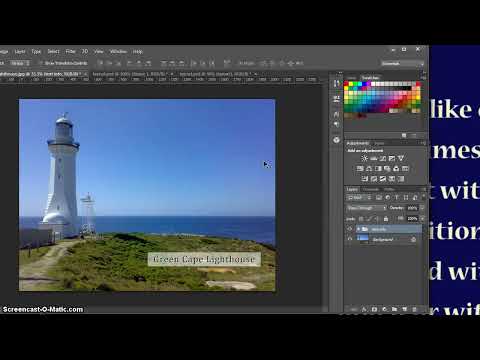
We continue our discussion of Layers in this video. Find out how to best manage layers in Photoshop. Learn how to link layers together and how to create and manage Layer Groups.
Adding Text that Pops! (5:49)
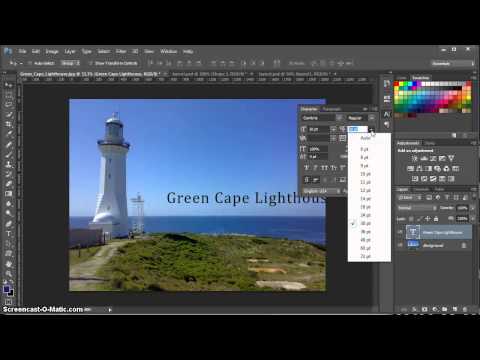
Add text to your images. Learn how to create text that enhances your images. Font selection, font size, line height, text color, tracking — learn all the fine details about the text tool and the techniques that make your text pop.
Making Selections (7:05)
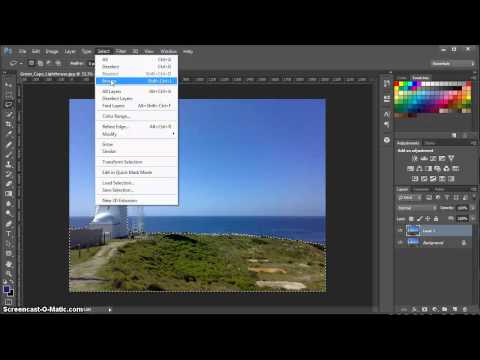
This video begins the discussion of selections. Select items from one photo to place in another. Select items to delete. Or, select items to duplicate. We look at some of the basic selection tools such as the marquee tool, lasso tool, magic wand and quick selection tools. Learn when and where to use these selection tools.
Bonus Material
Create Your Own Background (9:23)
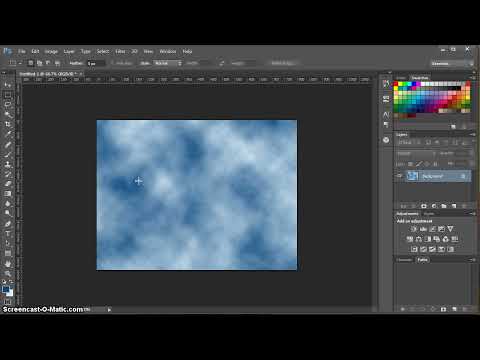
Learn how to make your own backgrounds — quickly! This video shows several different methods to create 'cloud' backgrounds or other textured backgrounds. Learn how to select your own color over any textured background. Plus, find out how to create a gradient background.
Picture Inside Text (4:10)
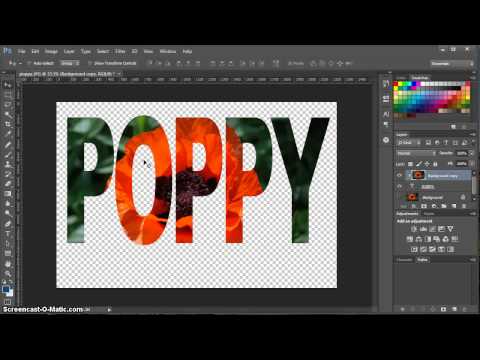
Learn how to place an image inside text in this video. Photoshop makes this very quick and easy. Plus, learn how to crop an image without using the crop tool.
Adding a Border (5:23)
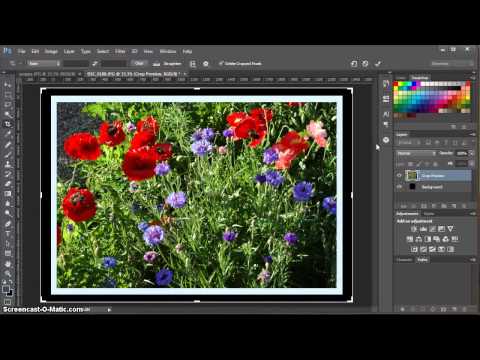
This video shows you how to add a professional straight-edge border to your image(s). A couple of different quick and easy ways are demonstrated, as well as how to do a double mat (border).