Section 1: Getting to Know Photoshop
Section 1 Topics
This section introduces you to Photoshop. We cover:
- The Photoshop desktop
- Opening files and best practices for saving Photoshop files
- How to crop and rotate images
- How to check and change image size and resolution
- The beauty of Photoshop layers
Plus, in the bonus section you can preview 3 different alternatives to Photoshop.
Whew! Let's get started!
Photoshop Desktop (4:17)
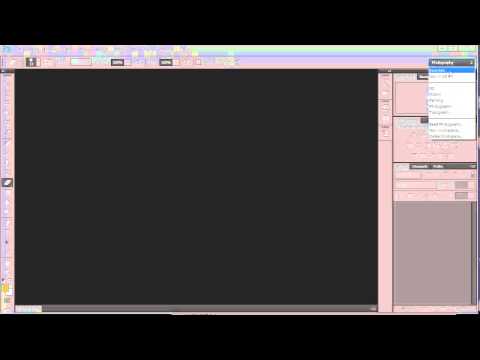
This video gives you an overview of the Photoshop desktop. We give definition to the various areas of the desktop, helping us understand the elements that make up the Photoshop desktop.
Open Files and Save Files Best Practices (6:14)
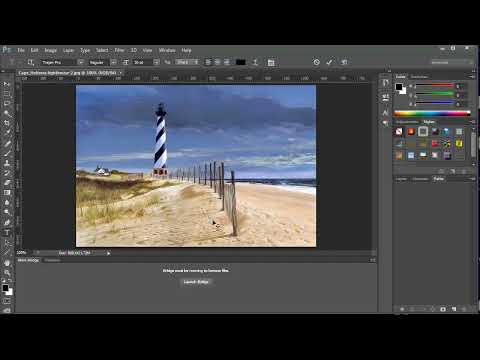
It's easy to open files, but what's the best way to save files in Photoshop? This video details the steps you want to take to ensure you can always go back and edit your Photoshop file, and at the same time provide the right file format for wherever the image will be used.
How to Crop and Rotate an Image (3:45)
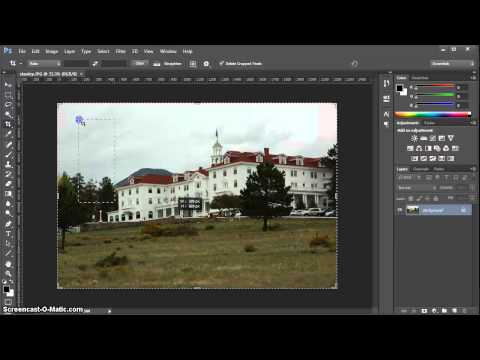
This video guides you through the steps to crop and rotate an image — at the same time! The crop tool was majorly enhanced in version CS6 of Photoshop, but this video includes steps for CS6 and prior versions.
How to Change Image Size and Resolution (6:23)
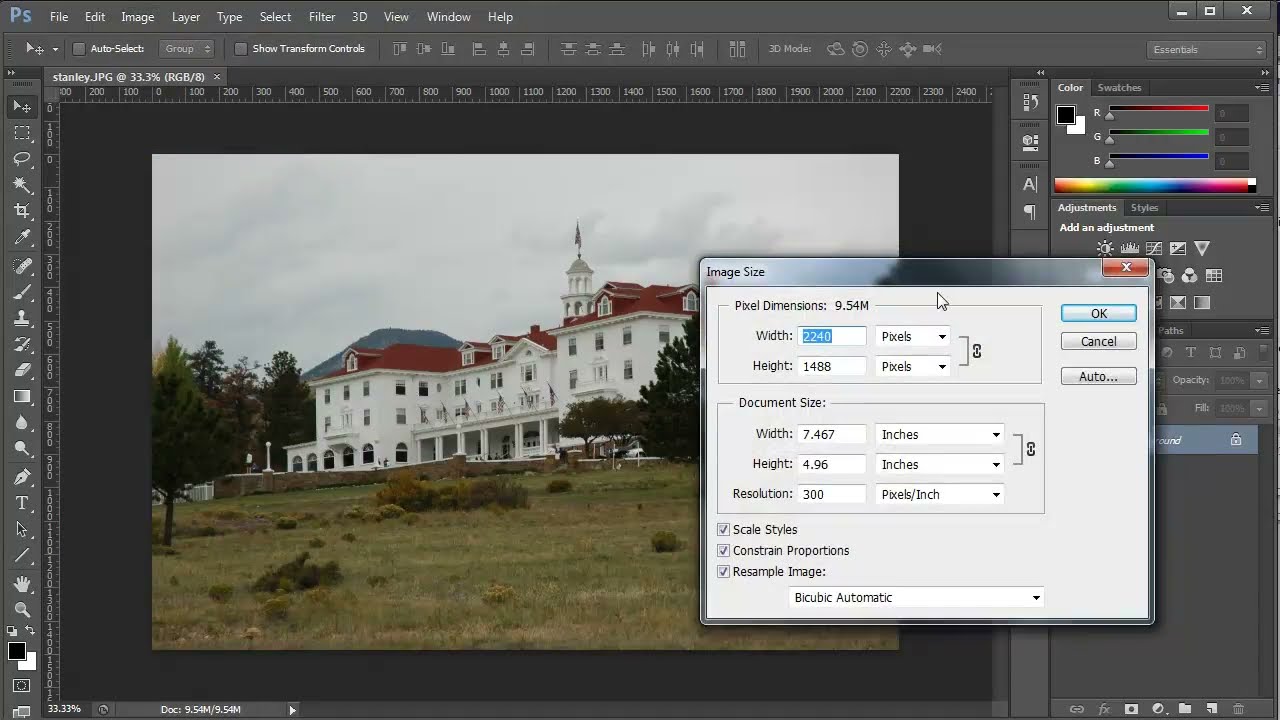
Learn how to change the size of your image while keeping it in proportion. Find out why your image looks so big on your monitor but prints so much smaller. Learn how to change the size and resolution of your image to give you the best file size and the best quality.
The Beauty of Photoshop Layers (4:23)
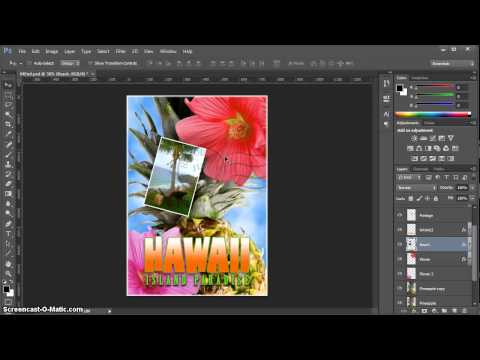
This video introduces you to Photoshop Layers and why they are so powerful. Learn how to manage layers in the Layers Panel and how to effectively blend and interact layers with other layers.
Bonus Material
Top 5 Tools (7:48)
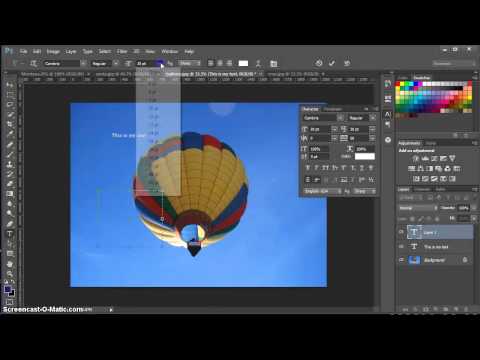
Learn the top 5 tools in Photoshop. You'll see these tools used in other videos of this course, but this video focuses on explaining the details of the top five most-used tools: Crop, Text, Shape, Quick Selection and Healing Brush.
Top 5 Panels (6:16)
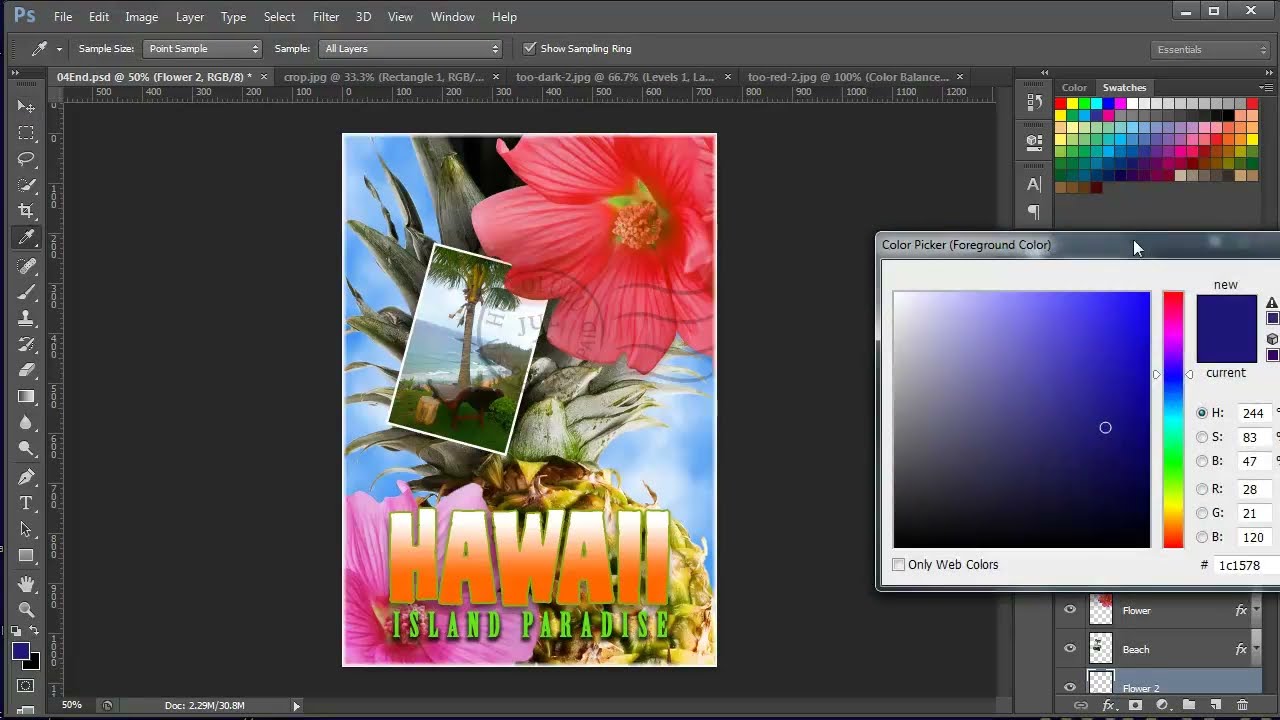
Learn more about the top 5 panels used most often over the years of using Photoshop: Layers, Swatches, History, Character, and Adjustment Layers.
Alternatives to Photoshop: GIMP (4:51)
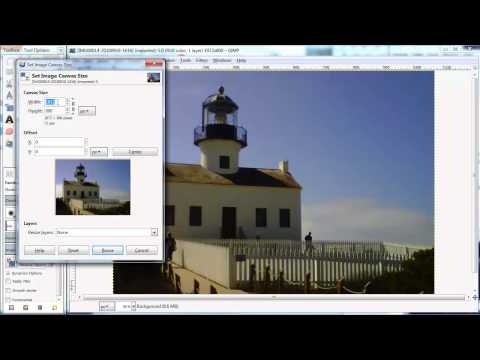
This video gives you an overview of one of Photoshop's best known alternatives — GIMP. It's similar to Photoshop in many ways and it's free!
Alternatives to Photoshop: Paint.net (3:46)
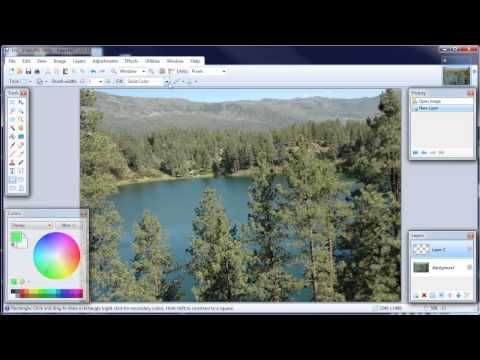
Paint.net, available at getpaint.net, is a great alternative to Photoshop. It's a very good basic image-editing program that is very similar to Photoshop in many aspects.
Alternatives to Photoshop: Pixlr.com (3:42)
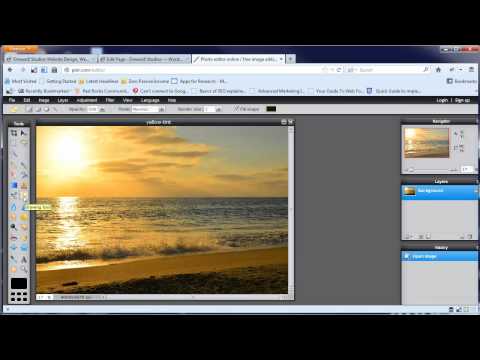
This video demonstrates an online option for photo editing. Pixlr.com offers great features and editing techniques.