What's New in Photoshop: AI Features Worth Knowing
Photoshop has always evolved, but the pace of change accelerated dramatically with the introduction of AI-powered tools. Here are the features that have genuinely changed how I work — and that are worth learning if you haven't already.
Generative Fill (Adobe Firefly)
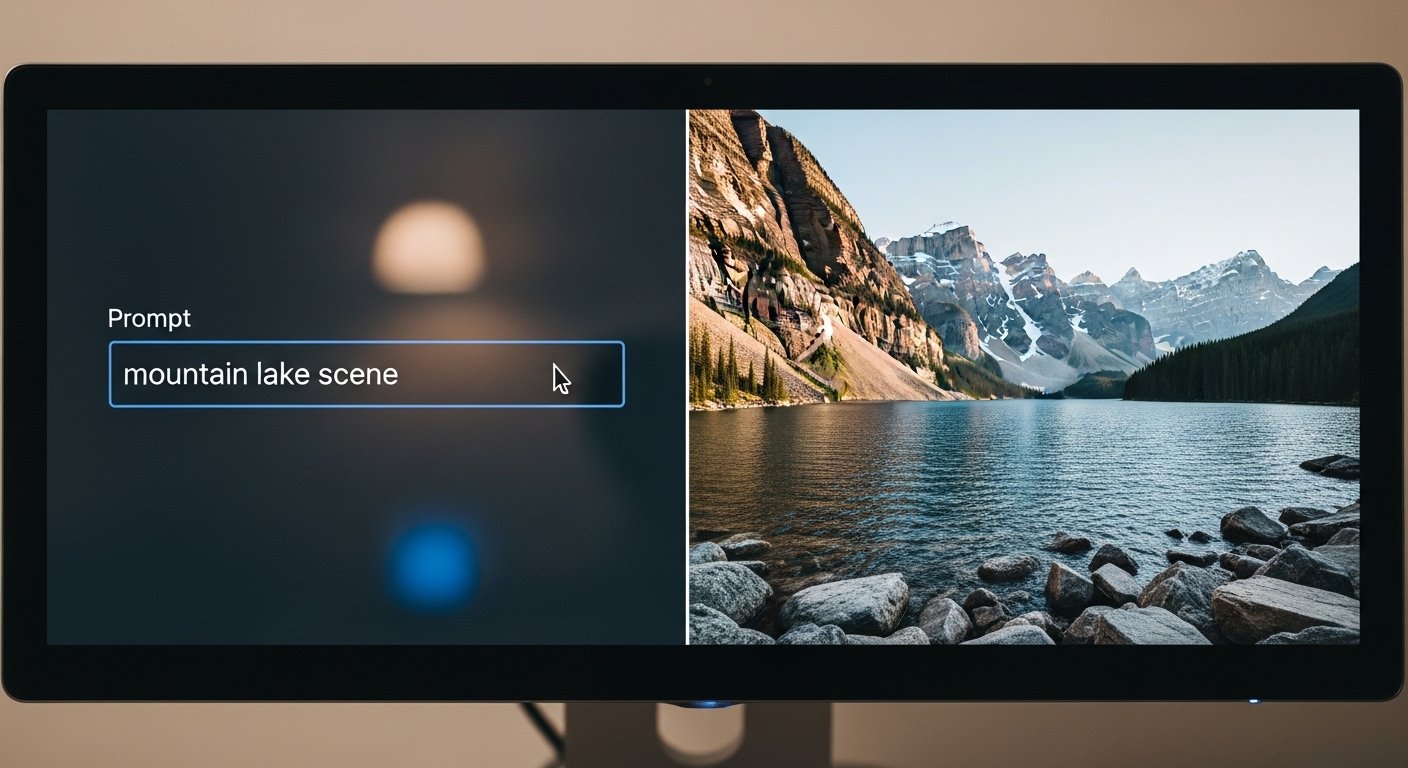
Select any area of an image, type a text prompt, and Photoshop generates new content that matches your scene — lighting, perspective, and style included. Remove unwanted objects, extend backgrounds, add elements that weren't in the original photo. This is genuinely the most transformative addition to Photoshop in years. Available in Photoshop 2024 and later.
Remove Tool
A dedicated tool (in the toolbar) that removes objects from photos with a single brush stroke — no selection, no Content-Aware Fill workflow needed. Just paint over what you want gone. Photoshop fills it in intelligently. Remarkably effective for removing people from backgrounds, distracting elements, or unwanted objects.
Select Subject (AI)
One click selects the main subject in your image using Adobe Sensei AI. Works well for portraits, products, and most foreground subjects. Still benefits from refinement via Select and Mask for complex edges, but it's a dramatically faster starting point than manual selection.
Neural Filters
Found under Filter > Neural Filters, these AI-powered adjustments include Skin Smoothing, Smart Portrait (adjust facial expression, age, gaze direction), Colorize (add color to black and white photos), and Landscape Mixer. Results vary, but several of these are genuinely practical for everyday retouching.
Contextual Task Bar
A floating toolbar that appears near your selection or active element and suggests the most likely next action — Remove Background, Select Subject, Generative Fill, etc. Reduces the time spent hunting through menus for common tasks.
Improved Content-Aware Fill
Content-Aware Fill has been in Photoshop for years, but the dedicated workspace (Edit > Content-Aware Fill) added more control: you can specify which areas of the image Photoshop samples from, rotate or scale the fill, and preview before committing.